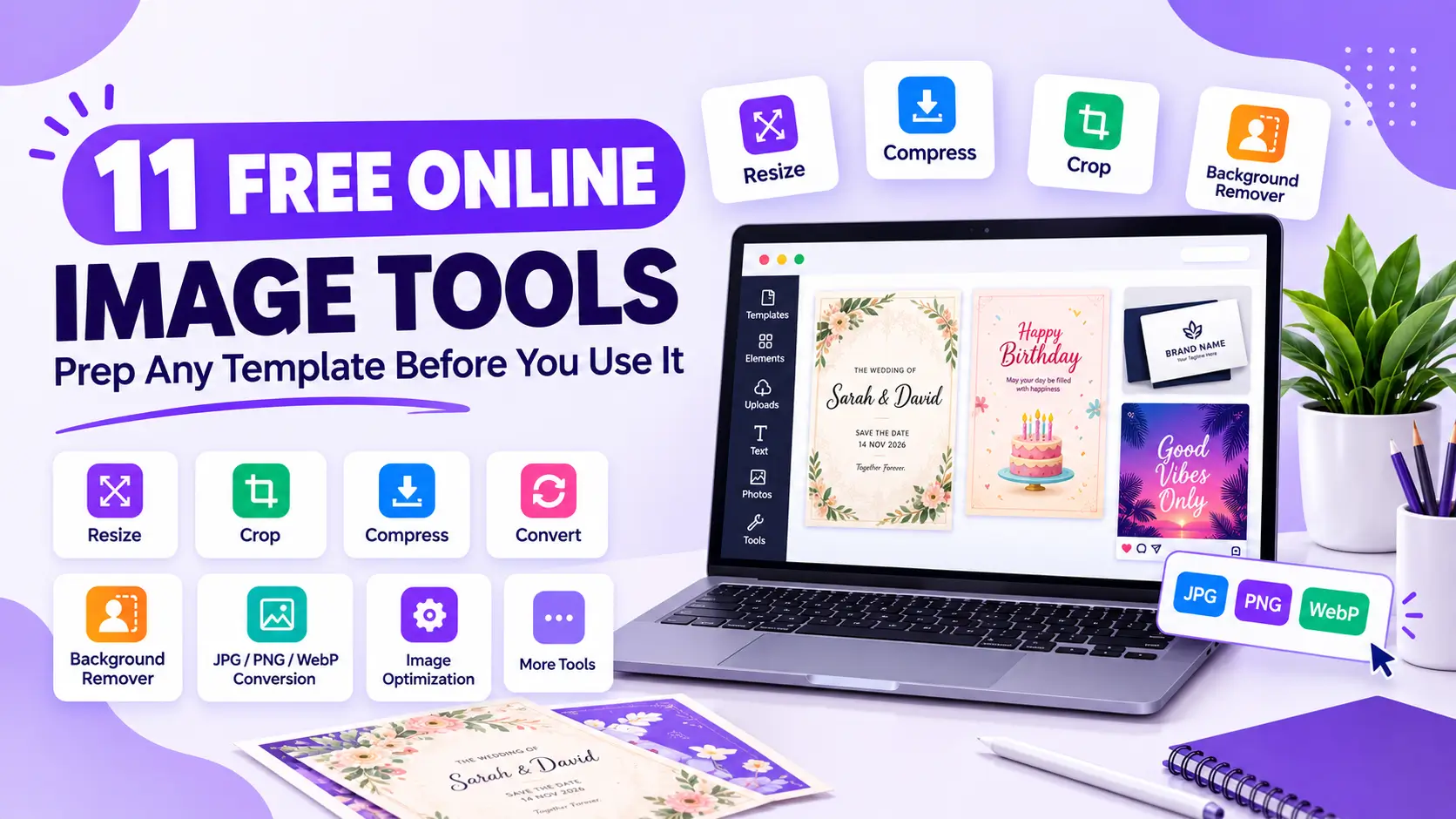
Downloading a great template is usually only half the job - most people still need to resize it for a different platform, compress it so it uploads quickly, swap in their own photo, or convert it to a different file format before it's actually ready to use. Rather than reaching for separate apps for each of these small tasks, our free online tools handle them directly in your browser, no installation needed.
Resize Image
The single most common reason a finished design looks wrong somewhere is using one size everywhere. If you've exported a template at Instagram's 1080x1350px and then need the same design as a 1200x630px Facebook post, our free Resize Image tool handles that in a few clicks, without reopening the original file in a design program.
Compress Image
A large, uncompressed export can be slow to upload or look overly heavy for a WhatsApp group share. Compressing a finished design keeps file size down without a noticeable quality drop - useful specifically for images headed to messaging apps, which often re-compress oversized files further on their own and can make the result look worse than if you'd compressed it properly yourself first.
Background Remover
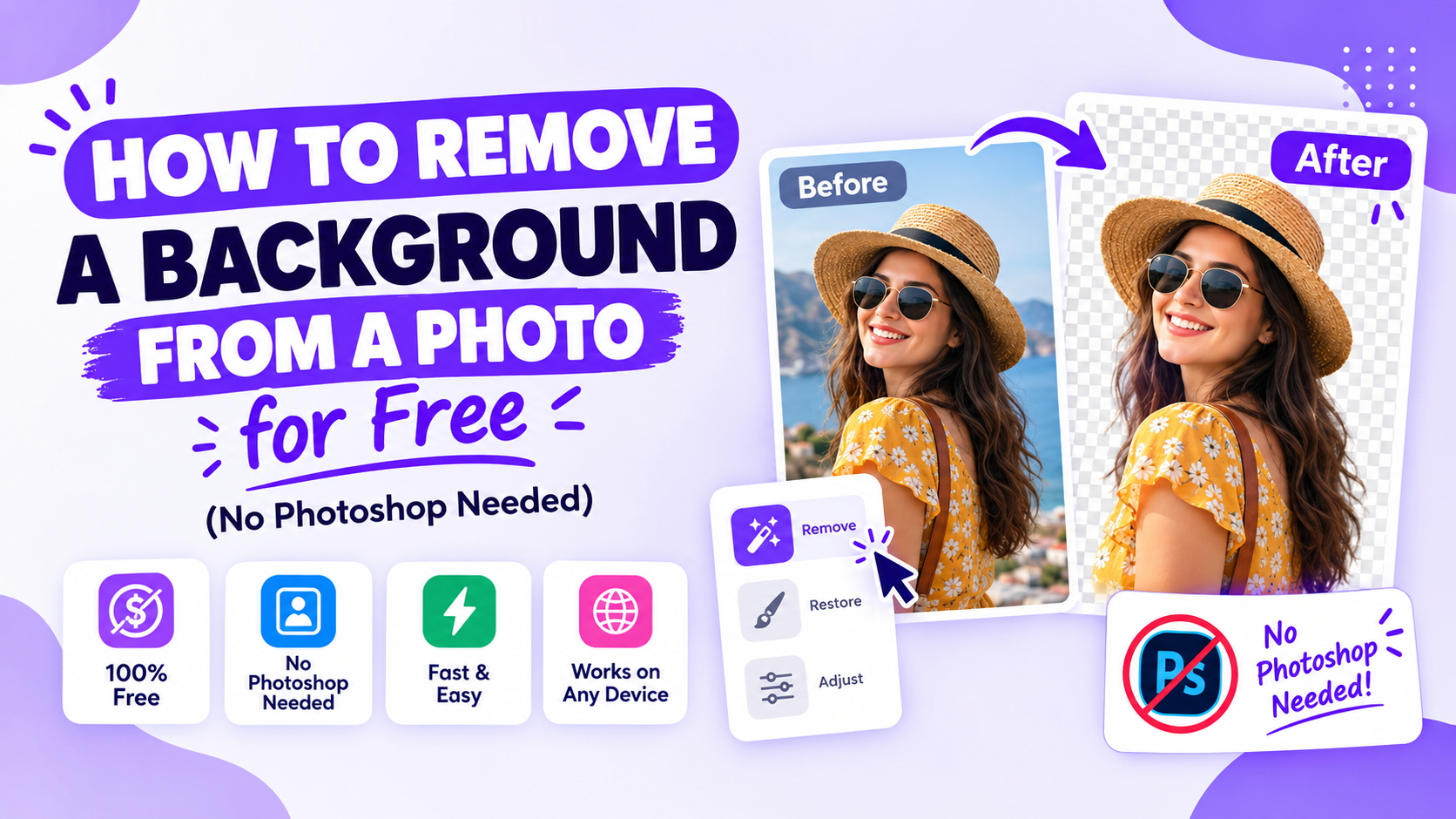
Many invitation and card templates include a photo placeholder, and a clean cut-out photo - rather than one with a busy or mismatched background - looks noticeably more polished once dropped in. Our free background remover handles this without needing Photoshop's layer masking tools, which is normally the more technical part of swapping in a personal photo.
Crop Image
Before resizing a photo into a template's placeholder, cropping it to roughly the right aspect ratio first avoids an awkward stretch or an unintended zoom once it's dropped into the design. This matters especially for photo-forward templates - birthday invitations with a child's photo, wedding cards with a couple photo - where a slightly distorted crop is one of the more noticeable mistakes in an otherwise good design.
Rotate & Flip Image
A quick fix for a photo taken at the wrong orientation, or for mirroring an image so it faces the right direction within a layout - small, but it's the kind of adjustment that otherwise sends people back into a full design program for a ten-second fix.
Format Converters: JPG, PNG, and WebP
Not every platform accepts every file format, and the three matter for different reasons:
- JPG to PNG - useful when you need a transparent background that JPG doesn't support, for example layering a logo over a colored banner
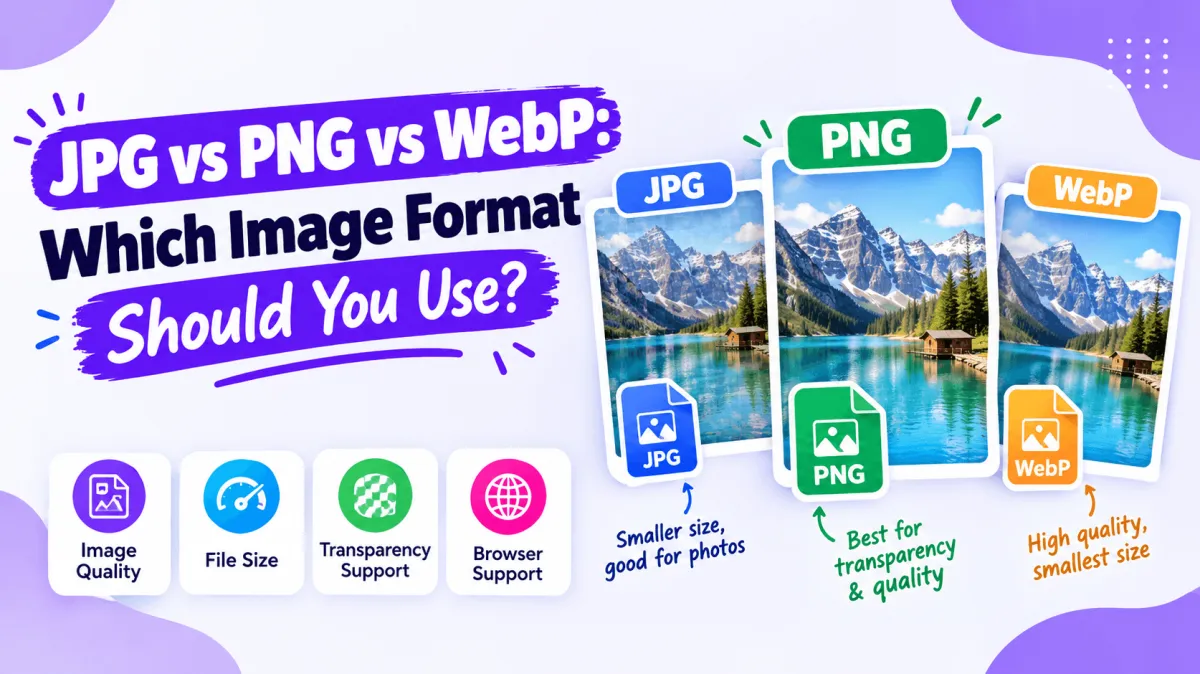
- PNG to WebP - WebP files are typically smaller than PNG at a similar quality, which matters if you're uploading a design to your own website and want faster load times
- WebP to JPG - useful when a platform or older software doesn't support WebP and needs a more universally compatible format instead
Color Picker
If you're trying to match a template's accent color to your own brand palette, or just want the exact hex code from a color you like in a reference image, our free Color Picker tool pulls the precise value directly from any uploaded image - more reliable than guessing a close match by eye.
Social Media Resizer
Rather than manually resizing one design for every platform separately, this tool exports several common social media dimensions from a single source image in one pass - a genuine time-saver if you're posting the same design across Instagram, Facebook, and a Story format in the same day.
Finishing Touches: Watermark, Borders, and Rounded Corners
A few smaller tools round out the set: adding a watermark to protect a design you're sharing publicly, adding a clean border for a more finished look, and rounding corners for a softer, more modern feel - small adjustments that otherwise require reopening a full editor for a single, simple change.
A Practical Workflow
- Download your template from our template library
- If it includes a photo placeholder, crop and background-remove your photo first
- Drop the prepared photo into the template and finish your edits in Canva or Photoshop
- Resize the finished export for each platform you're sharing to
- Compress the final files before sending them over WhatsApp or email
Where to Find All the Tools
Browse the complete, free toolset at ascribedesign.com/tools - no account required, nothing to install, and no watermarks added to your results.
Frequently Asked Questions
Do I need to create an account to use these tools?
No - every tool works directly in your browser without signing up.
Is there a file size limit for the Compress Image or Resize Image tools?
Reasonable everyday image sizes are supported; extremely large professional print files may need a dedicated desktop tool instead.
Does the Background Remover work well on complex photos?
It handles most portrait and product photos cleanly; very busy or low-contrast backgrounds can sometimes need a manual touch-up afterward in a full editor.
Can I use these tools together with templates from other websites, not just Ascribe Design?
Yes - the tools work on any image you upload, regardless of where the original template or photo came from.