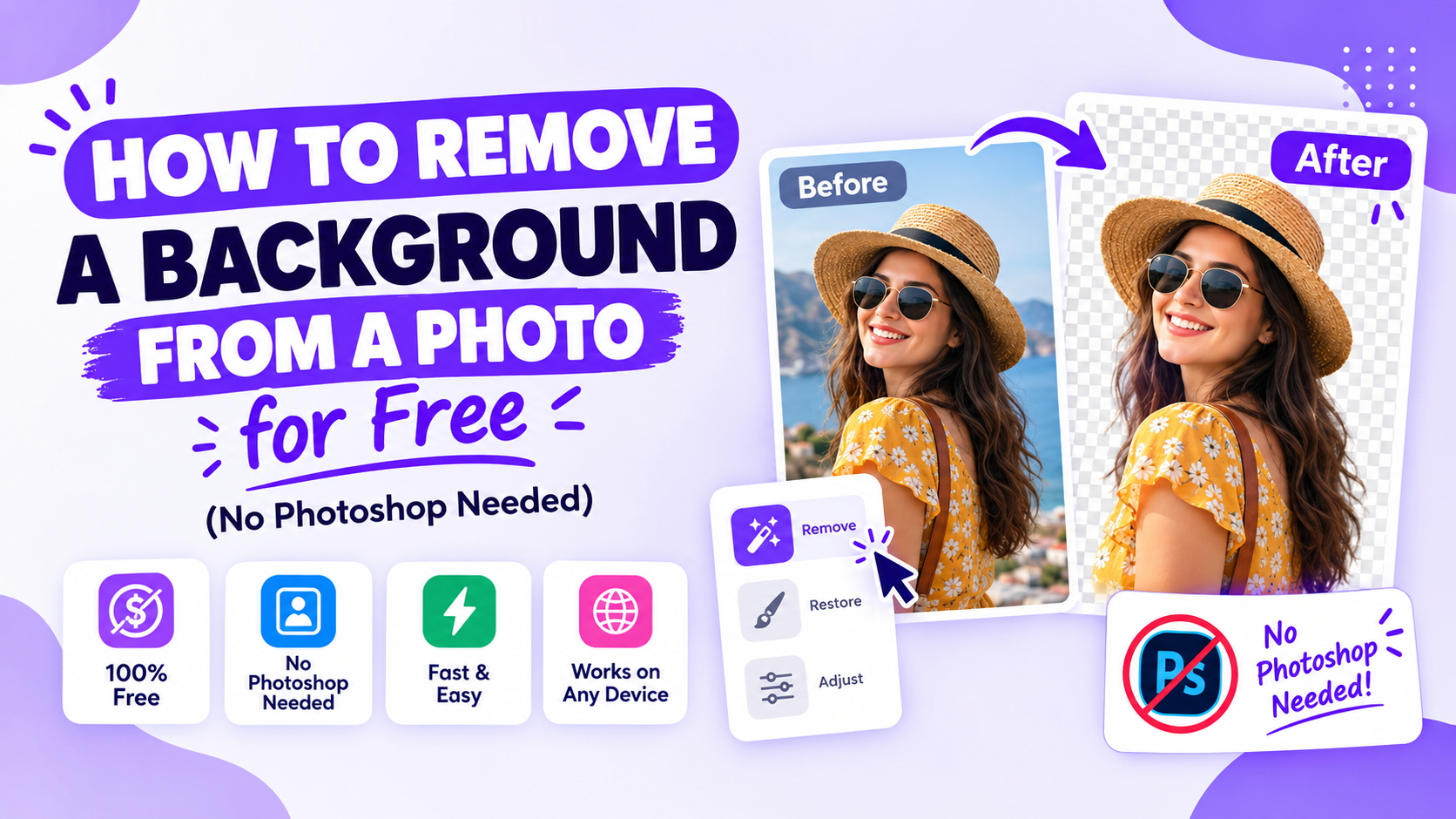
Removing a photo's background used to mean opening Photoshop and manually working with the Pen tool or layer masks - a genuinely fiddly process even for people with some design experience. A free online background remover does the same job in seconds, directly in your browser, no software installation required.
Why You'd Want to Remove a Background
- Dropping a personal photo into a template. Many invitation and card templates have a photo placeholder designed to work best with a clean cut-out, not a photo with its own distracting background.
- Product photography. A product photo on a plain white or transparent background looks more professional on a listing page or social post than one with a cluttered background behind it.
- Logo and graphic work. A transparent PNG logo can be layered over any background color - a logo saved with its original background baked in can't.
- Profile photos and headshots. Swapping out an inconsistent background for a clean one gives a more polished, professional look across multiple platforms.
How to Remove a Background Using Our Free Tool
- Go to the free tools page and open the Background Remover
- Upload your photo - most common formats (JPG, PNG) work directly
- The tool automatically detects the main subject and removes the background behind it
- Download the result as a transparent PNG, ready to use anywhere
No account, no watermark, and no software to install - the entire process happens in your browser.
What Makes a Photo Easy to Cut Out Cleanly
- Good contrast between subject and background. A dark subject against a light background (or vice versa) is easier for any background removal tool to separate accurately than a subject that blends into similarly colored surroundings.
- Sharp, in-focus edges. A blurry photo makes it harder for the tool to tell exactly where the subject ends and the background begins, which can leave a slightly soft or inconsistent edge.
- Simple backgrounds work best. A plain wall or sky behind the subject is removed more cleanly than a busy, detailed background with similar colors to the subject itself.
- Avoid extreme close-ups on fine detail. Hair, fur, and semi-transparent edges (like wine glass rims) are the hardest elements for any automated tool to handle perfectly - a slightly looser crop around these areas usually gives a cleaner overall result than an extremely tight one.
Common Mistakes
- Using a heavily compressed or low-resolution source photo. Compression artifacts around edges confuse the background detection and can leave visible fringing.
- Expecting a perfect result on genuinely complex images every time. Most portrait and product photos process cleanly, but a very busy or low-contrast photo may need a quick manual touch-up afterward in any basic photo editor.
- Forgetting to check the result at full size before using it. A cutout that looks fine in a small preview thumbnail can reveal rough edges once placed into a larger design.
Using Your Cutout in a Template
Once you have a clean, transparent-background photo, it drops directly into any template with a photo placeholder - a wedding invitation with a couple photo, a birthday poster with a photo frame, or a business card with a headshot. Our guide to prepping templates with our free online tools covers the rest of that workflow, including resizing and format conversion once your photo is ready.
Where to Find the Tool
The Background Remover is available free at ascribedesign.com/tools, alongside our other free image editing tools.
Frequently Asked Questions
Is the background remover tool actually free, or is there a hidden limit?
It's free to use directly in your browser, with no account or payment required.
Does the tool add a watermark to the result?
No - the downloaded image has no watermark added.
What file format should I download the result as?
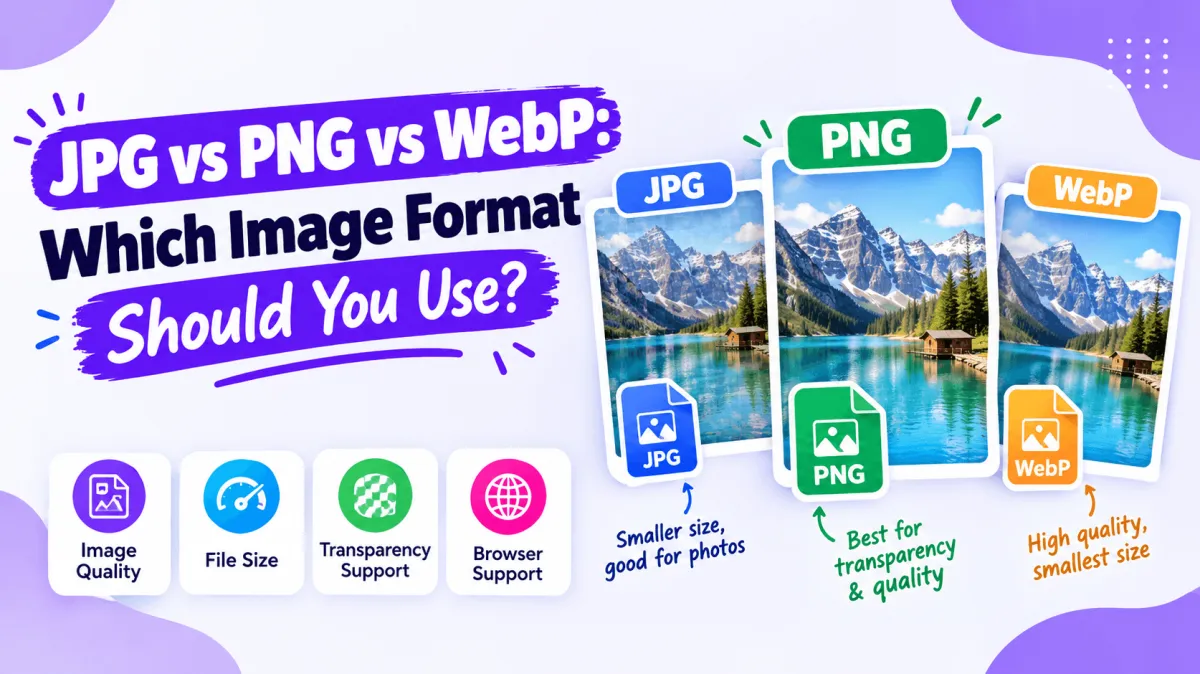
PNG, since it's the standard format that supports a transparent background - JPG doesn't support transparency at all.
Can I remove the background from a photo with multiple people or objects?
Yes, though results are generally cleanest when there's one clear main subject - a photo with several overlapping subjects may need some manual cleanup for a precise result.